
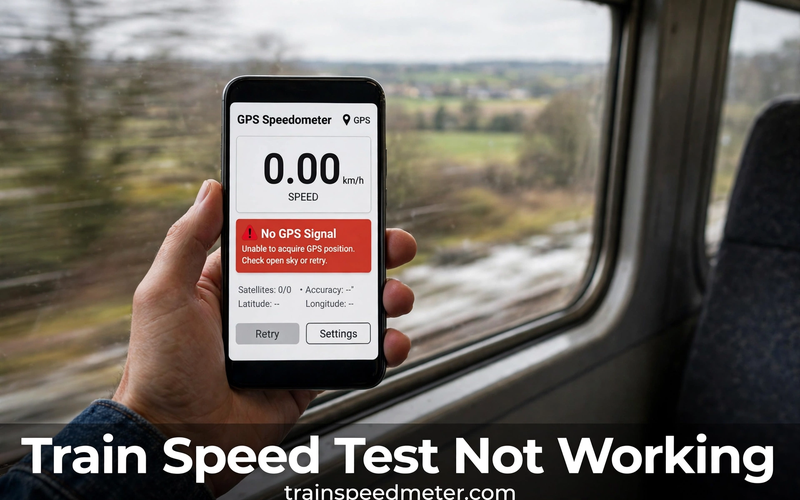
A train speed test not working almost always points to a GPS problem rather than a broken website. Denied or approximate-only location permission, battery saver mode, tunnels, and metal-coated train windows are the usual culprits. Whether the page is not loading, not updating, or stuck at 0 km/h, the fix usually takes under two minutes: allow precise location, move near an open window, reload the page, or try another browser.
Why a Train Speed Test Stops Working
A train speed test doesn’t talk to the train at all. It reads the GPS chip inside your phone, and the page simply displays what that chip reports. So when the needle freezes or the number sits at zero, one of three things has broken: your phone can’t see enough satellites, the browser isn’t allowed to read your location, or the page has lost its connection to the location feed.
That’s good news. Nearly every failure is fixable from your seat, without any special equipment.
Speed on a phone is calculated from the Doppler shift in satellite signals, so the reading depends on a clean line to at least four satellites. According to GPS.gov, smartphones are typically accurate to within about 4.9 metres under open sky, and that accuracy gets worse near buildings, bridges and trees. A train compartment is a harder place to work than an open field, which is why failures show up so often on journeys.
Quick Diagnosis: Match Your Symptom to the Fix
Find what you’re seeing in the table below, then jump to the matching fix.
| What you see | Most likely cause | Go to |
| Speed stuck at 0 km/h while moving | Permission denied or weak GPS | Fix 1, Fix 3 |
| “Location unavailable” or “permission denied” message | Browser or site blocked location | Fix 1 |
| Reading freezes for minutes | Tunnel, cutting or bridge | Fix 3 |
| Speed updates, then stops after a while | Screen lock or battery saver | Fix 2, Fix 6 |
| Page won’t load or open | Poor data connection or browser issue | Fix 5 |
| Wildly wrong numbers | Poor satellite fix | Fix 3, Fix 7 |
| Page keeps crashing or reloading | Outdated browser, low memory | Fix 5, Fix 7 |
Fix 1: Check Location Permission (Browser and Website)
This one solves most cases. Your phone has two layers of permission: one for the browser app and one for the individual website. Both must allow location.
On iPhone: Open Settings → Privacy & Security → Location Services → Safari Websites (or your browser) and choose While Using the App. Then turn on Precise Location. If it’s off, your phone gives websites a rough area instead of an exact fix, and speed readings fall apart.
On Android: Open Settings → Location, make sure it’s on, then go to App permissions → your browser → Allow only while using the app. On Android 12 and later, switch on Use precise location. Approximate location is a quiet and very common reason a train speed test stops updating.
Then check the site itself. In Chrome, tap the icon beside the web address, open permissions, and set Location to Allow. If you tapped “Block” once by accident, the page will never ask again until you reverse it.
Browsers only share location with secure pages, so make sure the address starts with https. The Geolocation API specification that every browser follows requires this.
Fix 2: Turn Off Battery Saver and Use High-Accuracy Mode
Power-saving mode quietly limits how often your phone polls GPS. The result is a speed that updates every few seconds, or not at all once the screen dims.
Turn off battery saver, low-power mode, and any “optimise battery” setting that applies to your browser. On Android, open the location settings and enable the high-accuracy option (labelled Google Location Accuracy or Improve accuracy on most phones). That lets Wi-Fi and mobile networks assist the satellite fix, which gets a lock faster.
For a long trip, a power bank is worth carrying. GPS tracking with the screen on drains the battery noticeably faster than normal browsing.
Fix 3: Get a Clear View of the Sky
If permissions are fine and the speed is still zero or frozen, the problem is physical. Satellite signals are weak, and solid structures block them.
Tunnels and deep cuttings. There’s no workaround here. Signals can’t pass through rock or concrete, so the reading freezes or drops to zero until the train emerges. Give it a few seconds in open country and it recovers on its own. Long tunnels such as the Channel Tunnel or Switzerland’s Gotthard Base Tunnel mean several minutes of silence.
Coated and double-glazed windows. Many modern intercity and high-speed trains use tinted or metal-coated glass that weakens GPS signals. In practice, the phone often performs noticeably better when held at a window that isn’t heavily coated, or near an open vestibule gap.
Seat choice. Window seats beat aisle seats. On double-decker trains the upper level generally gets better reception than the lower one.
Keep the phone face-up near the glass. You don’t need to press it against the window, but a few centimetres helps.
Fix 4: Start a Fresh Session After the Train Moves
A stale session can lock onto a bad position and never recover. If your reading is stuck, close the tab completely, reopen the page and tap Start again once the train is already moving.
Before that, toggle your phone’s location switch off, wait ten seconds, and turn it back on. This forces a cleaner satellite lock. If you’ve just come out of a tunnel or an underground station, give the phone a minute in the open.
Fix 5: Switch Browsers and Avoid In-App Browsers
If the page refuses to open, loads half-way, or crashes, the browser is often the problem rather than the site.
Open the link in Chrome, Safari or Firefox instead of inside another app. Links tapped inside messaging, social media or email apps open in an embedded browser that can block location prompts. Copy the link and paste it into a full browser.
Also check that the browser is up to date. Old versions can handle the location feature badly, and updating is often the entire train speed test crash fix you need. If one browser fails, a different one usually works within seconds.
If the page is not loading at all, remember that it needs a data connection once to open. After that, the GPS reading itself doesn’t depend on mobile data, which is useful in patchy coverage areas. Load the page at the station, before you board.
Fix 6: Keep the Screen On and the Tab Open
Browsers pause background tabs to save power. If you switch to another app or let the screen lock, location updates can stop, and the speed will look frozen when you return.
Keep the speed test as the active tab, set a longer screen timeout while you travel, and avoid switching between apps. If the display needs to stay dim, lower the brightness rather than letting the phone lock.
Fix 7: Restart, Update and Clear Site Data
When nothing else works, go through a clean reset in this order:
- Clear the browser’s site data for the speed test page, which also resets any saved location block.
- Restart your phone, which clears stuck location services.
- Update your browser and operating system.
- Reload the page and allow location when prompted.
Test this on the platform before boarding. Stand outside for a minute and check that the GPS accuracy figure settles to a small number. Speed will read zero while you’re stationary, but you’ll know permissions and the signal are healthy before the train leaves.
Train Speed Test App Not Working vs Browser Not Working
The two behave differently, and the fix depends on which you use.
| Browser-based speed test | Speed test app | |
| Install needed | No | Yes |
| Most common failure | Location blocked for the site | Background location or battery restrictions |
| Crash fix | Reload, switch browser, clear site data | Update, reinstall, grant permissions again |
| Works with in-app links | Often blocked | Not applicable |
| Storage and updates | None to manage | Needs storage and regular updates |
| Cost | Usually free | Free with ads, or paid for extras |
If a train speed test app is not working, check three things in order: that location permission is set to While using the app, that the app isn’t restricted in battery settings, and that it’s updated. If it still fails, uninstalling and reinstalling resets a corrupted permission setting. A browser-based tool like the live speedometer on Train Speed Meter avoids the install and update problems altogether, which makes it a convenient first choice for casual travellers.
Common Error Messages and What They Mean
An error solution is easier when you know what the message is saying.
- “Location permission denied.” The browser or site is blocked. Follow Fix 1.
- “Position unavailable.” The phone can’t get a fix. Move to a window, wait a minute, and check location is on.
- “Timeout.” The phone took too long to find satellites. This is normal after a tunnel. Wait, or restart tracking.
- “Geolocation not supported.” The browser is outdated or the page isn’t secure. Update the browser or open the https version.
- Speed shows 0 but the train is moving. Weak signal or approximate location. Fix 1 and Fix 3.
What Normal Looks Like, So You Don’t Chase a Problem That Isn’t There
Sometimes a train speed test is working perfectly and the reading just looks wrong. A few behaviours are completely normal:
- Zero at stations and signals. The train really is stationary, held at a signal or waiting on a loop line.
- Low average, high peak. Metro and commuter trains spend most of their time accelerating and braking, so the average sits far below the top speed.
- Slow readings in the first minute. The phone needs time to settle on a satellite fix.
India’s network shows the spread well. The Vande Bharat Express is cleared for up to 160 km/h on select routes, though most services run slower in practice, while ordinary mail and express trains run at a fraction of that. If you want to compare your reading with what’s possible on a route, see our guide to India’s train speeds, or try the dedicated Shatabdi speed test and Gatimaan speed test pages. For global context, the Wikipedia article on high-speed rail covers the services that sustain 250 to 350 km/h.
Keep one more point in mind: a timetable describes average speed over a section, while GPS shows speed this second. The two will rarely match.
Pro Tips From Real Journeys
- Test before you need it. Run the speed test on the platform for a minute. If accuracy settles, you’re set.
- Start after departure. Beginning the session once the train is moving avoids a false zero and a stuck first reading.
- Compare over minutes, not seconds. A single snapshot can spike. Watch the trend for a few minutes before judging.
- Pick the right side. Choose the side with fewer overhead wires and less tree cover when you can.
- Use two devices if accuracy matters. If one phone struggles, a second with a different chipset sometimes holds a better lock.
- Backup method. On routes with mileposts, time the gap between two posts. Divide 3,600 by the seconds taken per mile or kilometre to get the speed per hour.
Who Benefits Most From Getting This Working
- Daily commuters use a speed test to spot slowdowns and confirm whether delays come from signals or speed restrictions.
- Rail enthusiasts and photographers log peak speeds on high-speed and express services and compare them across routes.
- Students and teachers use live readings to demonstrate speed, acceleration and the way GPS works.
- Occasional travellers simply want to know how fast their first Vande Bharat or Shatabdi ride really is.
- Long-distance passengers can track average speed to judge whether a late train is making up time.
Free Browser Tool or Paid App: Which Is Worth It?
For most people, a free browser-based speedometer covers everything: live speed, maximum speed and a simple average. Paid apps add trip logs, maps and exports, which matter if you record journeys regularly or share data. The trade-off is more permissions, more storage and more things that can break.
A sensible approach is to keep a browser tool as your default and a trusted app as a backup. If one fails mid-journey, switching takes seconds.
Frequently Asked Questions
Why is my train speed test not working even though location is on?
Location being on isn’t enough. The browser and the website each need their own permission, and on newer phones precise location must be switched on separately. Check all three, then move near an open window. If the page still shows zero, reload it and start tracking after the train departs.
Why does the train speed test show 0 km/h while the train is moving?
It usually means the phone has no satellite fix or the browser is blocked from reading location. Tunnels, bridges and tinted glass cause temporary zeros that clear on their own. A permanent zero points to a permission or accuracy setting, so recheck both.
How do I fix a train speed test that is not loading?
Open the page on a stable connection, ideally at the station, and use a full browser rather than an in-app one. Clear the cache, update the browser and try again. Once the page loads, GPS tracking doesn’t depend on mobile data.
Can a train speed test work without internet?
You need data once to open the page. After that, the speed comes from your phone’s GPS chip, so it keeps calculating through patchy coverage. Load the page before boarding, keep the tab open, and avoid refreshing it in a dead zone.
Why is my train speed test not updating after a few minutes?
The usual cause is the phone saving power. Battery saver, a locked screen or a background tab can pause location updates. Turn off power saving, keep the screen on, and leave the speed test as the active tab.